Installation guide
Set up your IPTV in five plain steps
Written for people who would rather not read a manual. It works for any device, and links to the specific guides where the details differ.
Before you start
You need three things:
- A device from our compatible devices list
- A working internet connection. Allow around 10 Mbps for HD and 25 Mbps for 4K, per screen
- Your login details from the desk, if you have ordered. If you have not, see the plans
Step 1: Connect your device
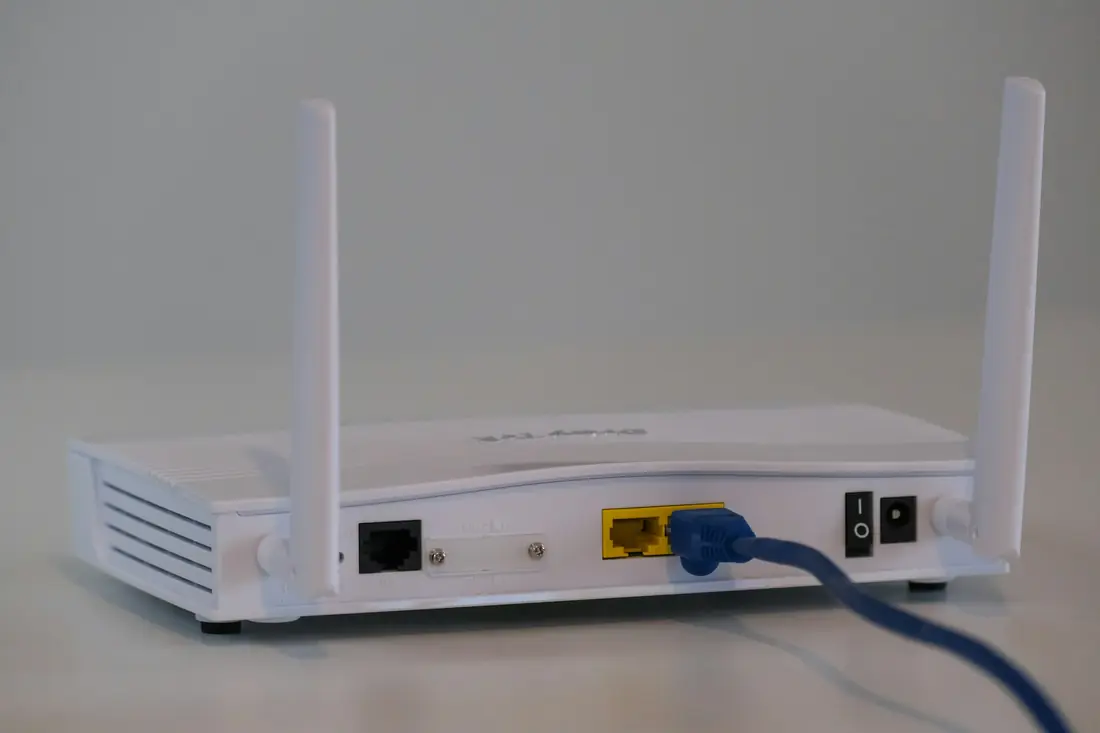
Use an Ethernet cable if the router is close. If you have to use Wi-Fi, choose the 5 GHz network if your router offers one, because it is usually less crowded.
Step 2: Install a player app
A player app is the screen you watch through. The desk will tell you which one to use for your device. Install it only from your device's official store:
- Samsung and LG TVs: the app store on your TV. See the smart TV guide
- Fire TV Stick: the Amazon Appstore. See the Fire TV Stick guide
- Android TV, boxes and phones: Google Play. See the Android guide
- Apple TV, iPhone and iPad: the App Store. See the Apple guide
Some apps have a small one-time fee or a trial period of their own. That fee goes to the app's developer, not to us.
Step 3: Enter your details
Look for an option called "Add user", "Add playlist" or "Login". Enter what the desk sent you, exactly as it appears. Capital letters matter, and a space at the end can stop it working.
The first load can take a little time, because the app is downloading the channel list. Let it finish.
Step 4: Test a few channels
Start with a news channel, then try the things you actually want to watch. It is worth testing again around 8pm, since that is when your connection is busiest.
Step 5: Make it yours
- Add your most-watched channels to favorites
- Hide any categories you will never use, if your app allows it
- Set a parental PIN if there are children in the house
- Keep the message with your login details somewhere safe
If something goes wrong
I cannot find the app on my TV.
App stores differ by model and region. Tell the desk your exact model and we will suggest an alternative. On older TVs, a streaming stick is often the simplest route.
It says my login failed.
Retype it slowly. If you are copying from your phone, make sure no space came along at the end. Then send us a photo of the screen.
Channels load, but the picture freezes.
This usually comes from Wi-Fi or evening congestion. Try restarting your router and moving closer to it, or use a cable. Our support page has further checks.
Rather have someone walk you through it?
Tell us your device, and we will go through the setup with you one step at a time.